Since 20 November 2026, owners of Claude Team and Enterprise organisations can turn on computer use (beta), which lets Claude see the screen and click and type in the desktop apps a user allows. It is best tested on low-risk work in apps that have no connector: old desktop software, internal dashboards, report building and app testing. Keep it away from banking, legal, medical and personal-data apps, and start with a short list of allowed apps.
On 20 November, Anthropic's release notes added a line that matters to any company on a Claude Team or Enterprise plan: computer use is now available to those plans in beta. Claude can look at a user's screen and work in the desktop apps that user allows, clicking and typing as a person would.
Until now this was limited to individual plans. For a business, it opens up the software that AI tools could not reach: the old accounting package, the internal dashboard, the vendor portal with no way to connect to it. It also brings new risks, and Anthropic's own help pages are frank about them. Here is what launched, where to test it, and where to keep it out.
What launched
According to Anthropic's setup guide:
- It is off by default. Only an Owner or Primary Owner can turn it on for the organisation, and the rollout is gradual, so not every organisation will see the setting yet.
- It runs through the Claude Desktop app on macOS 14 or later and on Windows. A task can be started from Claude on the web or the phone, but a computer with Claude Desktop open has to be available to do the work.
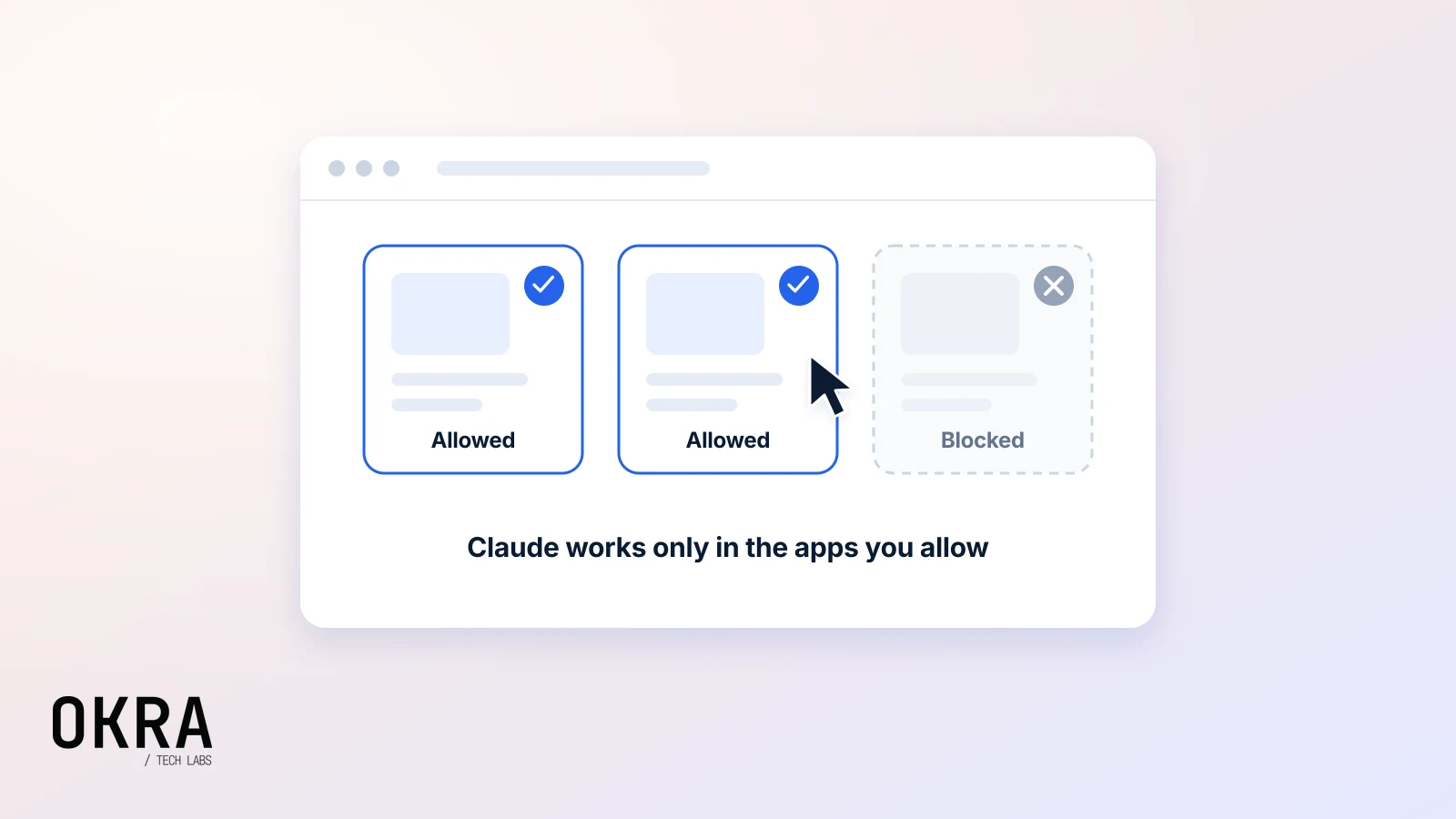
- Owners choose the apps. They can block named apps or allow only a named list. Each user still has to approve an app before Claude works in it.
- On Enterprise plans, custom roles can keep the feature away from particular people. On Team plans, the setting applies to everyone.
- Some organisations are excluded, including those on Anthropic's HIPAA-ready, customer-managed encryption key, and education (FERPA or K-12) configurations.
How it works
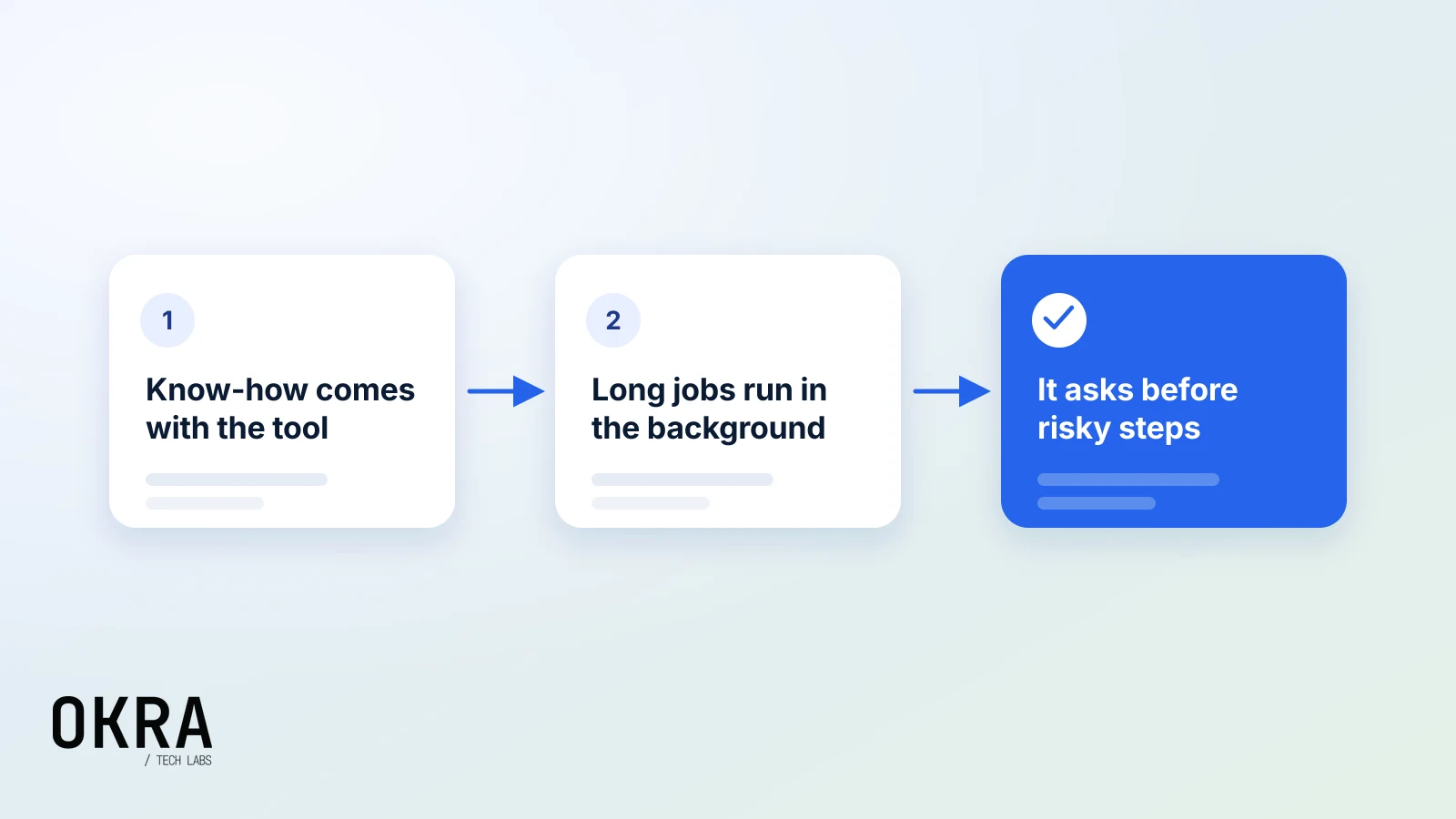
Claude takes screenshots to understand what is on screen, then clicks, types and opens apps. Anthropic's guide to computer use in Cowork explains that screen control is the last resort. Claude first tries a connector (the direct link to a tool such as email or shared drives), then a browser, and only then the screen, because screen work is slower and more error-prone.
Some kinds of app are restricted whatever the owner allows. The same guide says Claude can see browsers and many investment and trading apps but cannot click or type in them, and can click but not type in terminals and code editors. Claude is also instructed to check with the user before actions the request did not clearly cover, such as sending a message or submitting a form.
Five business uses worth testing first
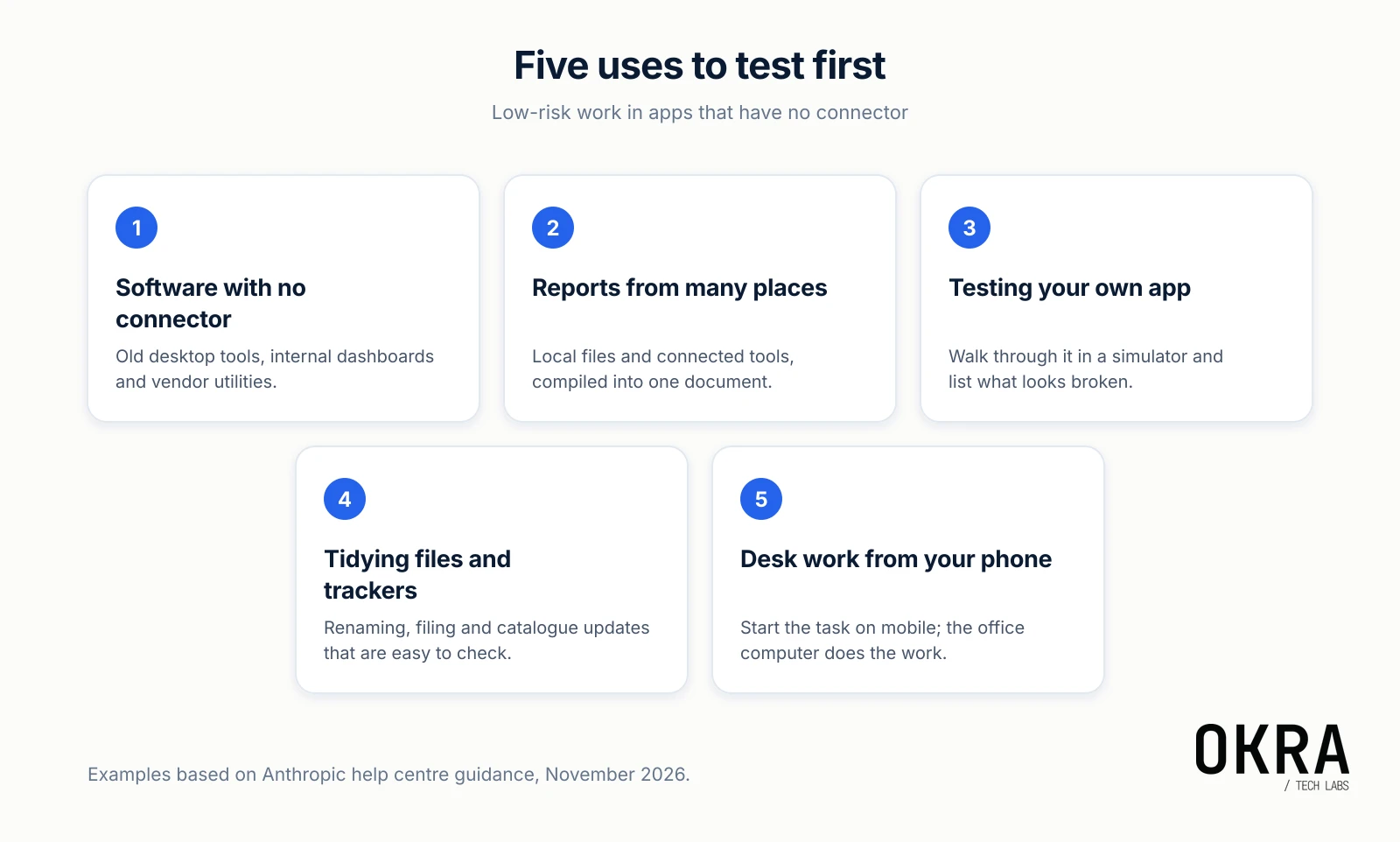
1. Software with no connector
Most companies run at least one tool nothing else can talk to: a desktop inventory program, an old ERP screen, a supplier's Windows utility. Anthropic names internal dashboards and specialised team tools among its own examples.
Example (illustrative): a trading firm in Ahmedabad asks Claude to open its stock program each Monday, read the week's closing quantities for twenty items and put them in the shared planning sheet.
2. Reports that pull from many places
Anthropic's own example is a competitive analysis built from local files and connected tools, then compiled into a formatted report. The same pattern fits a weekly operations summary or a tender comparison.
Keep a person on: the numbers. Spot-check figures against the original before the report leaves the team.
3. Testing your own app
Anthropic suggests opening a phone simulator, using an app you have built and noting problems. For a product team, that is a cheap first pass before a release: walk through sign-up, try the main screens, list what looks broken.
4. Tidying files, trackers and catalogues
Renaming and filing documents, updating a product catalogue from a supplier sheet, moving entries from one tracker to another. These are dull, low-risk and easy to check afterwards, which makes them good first tasks.
5. Starting desk work from your phone
Because a task can be started from the phone while the office computer does the work, a manager on a site visit can ask for a file to be found, summarised and saved to the right folder before they are back.
Where to keep it out
Anthropic's guidance is direct. In its Cowork guide it strongly advises against using computer use to manage financial accounts or investments, handle legal documents or contracts, process medical information, or work in apps that hold other people's personal information.
Three facts from the help pages explain why:
- There is no sandbox. The setup guide says nothing sits between Claude and a user's applications, and an approved app can reach files outside the folders shared with Claude.
- Screenshots travel. They are saved with the chat and can include personal or confidential information that happened to be on screen.
- What is on screen can mislead it. The safety guide warns about prompt injection: hidden instructions in a web page or email that try to steer Claude. Anthropic says its safeguards are not perfect.
For Indian companies there is a legal side as well. Customer records on screen are personal data, and our post on the DPDP Rules and AI systems covers what the law expects of you.
A setup list for owners
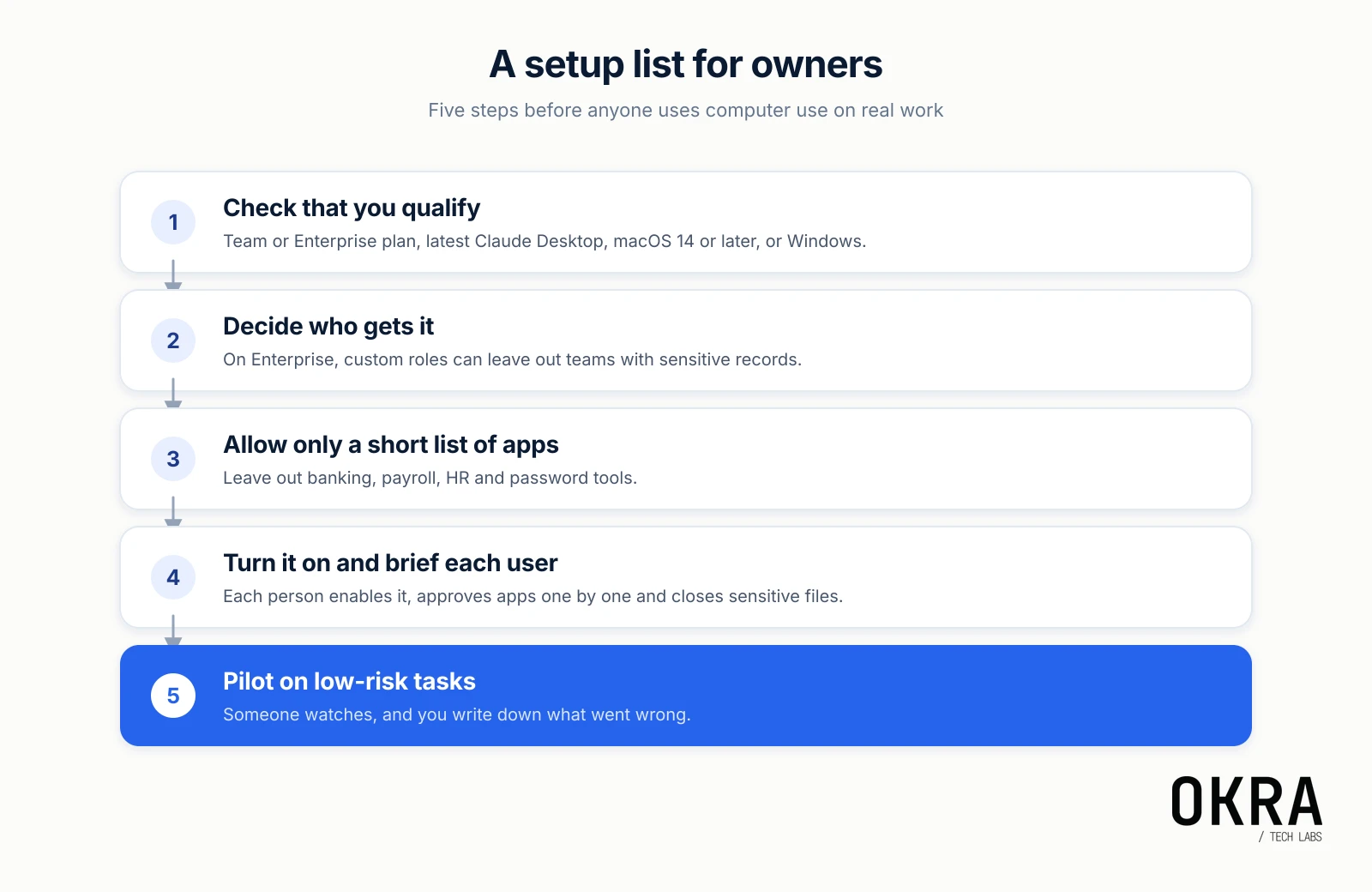
- Check that you qualify and that everyone is on the latest Claude Desktop.
- Decide who gets it. On Enterprise, use custom roles to leave out teams that handle sensitive records.
- Choose "Allow only these apps" and start with a short list. Leave out banking, payroll, HR and password tools.
- Turn it on and brief each user. Each person enables it on their own computer and approves apps one at a time. Tell them to close sensitive files first.
- Pilot on low-risk tasks with someone watching, and write down what went wrong.
Know the off switch too. Anthropic says a change to the setting takes about an hour, sometimes longer, to reach each desktop, so it is not an instant stop.
Computer use, or a built agent?
Computer use is a general tool for occasional work. If the same task runs every day at volume, clicking through screens is the slow way to do it. A connector or a purpose-built agent that talks to the system directly will be faster, cheaper per task and easier to audit. Our guide to agents, chatbots and workflow automation explains how to choose.
A sensible plan: use computer use to find out which desk tasks are worth automating, then build properly for the ones that repeat.
Questions people ask
What is Claude computer use?
It is a feature that lets Claude look at a computer screen through screenshots and click, type and open apps to finish a task. The user approves each app before Claude can work in it.
When did computer use come to Claude Team and Enterprise plans?
Anthropic's release notes list computer use (beta) for Team and Enterprise plans on 20 November 2026. It is off by default, an owner has to turn it on, and it is rolling out to organisations gradually.
Is Claude computer use safe for business data?
It needs care. Anthropic says there is no sandbox between Claude and a user's applications, that screenshots can contain confidential information, and that content on screen could push Claude into unintended actions. Anthropic advises against using it for financial accounts, legal documents, medical information and apps that hold other people's personal data.
Should we use computer use or build an AI agent?
Use computer use for occasional tasks in apps that have no connector. For a process that runs every day at volume, a connector or a purpose-built agent is faster and more dependable; Anthropic itself describes screen control as slower and more error-prone than a connector.